

Create a test account
Learn how to create a sandbox account that is linked to your production account login. Test your code end-to-end.
If you want to test custom integrations and applications without any risk to your production account, you can create a separate Klaviyo account for testing. This is optional.
A test account is a regular Klaviyo account with a test label. It runs in the same production environment as any other Klaviyo account, and plans and billing work the same way.
The account owner will need to set up a secondary account tied to the same email address and password as the primary account, which will link the two together in Klaviyo.
Sign up for multiple accounts
While logged out of your production account, head over to Klaviyo and click the Sign Up button at the top of the page.
Sign up using the same email address and password currently in use on your production account, but with a different company name. For example, if the company name on your production account is Ben's Best Books, your test account might be called Ben's Best Books - test.
Complete the guided set up wizard to finalize your test account. You will also want to ensure user roles are assigned in the secondary account. Read more about multi-account user privileges.
Convert to a test account
- Open the bottom left account selector and click Settings.
- Navigate to Account > Testing and click Convert to test account.
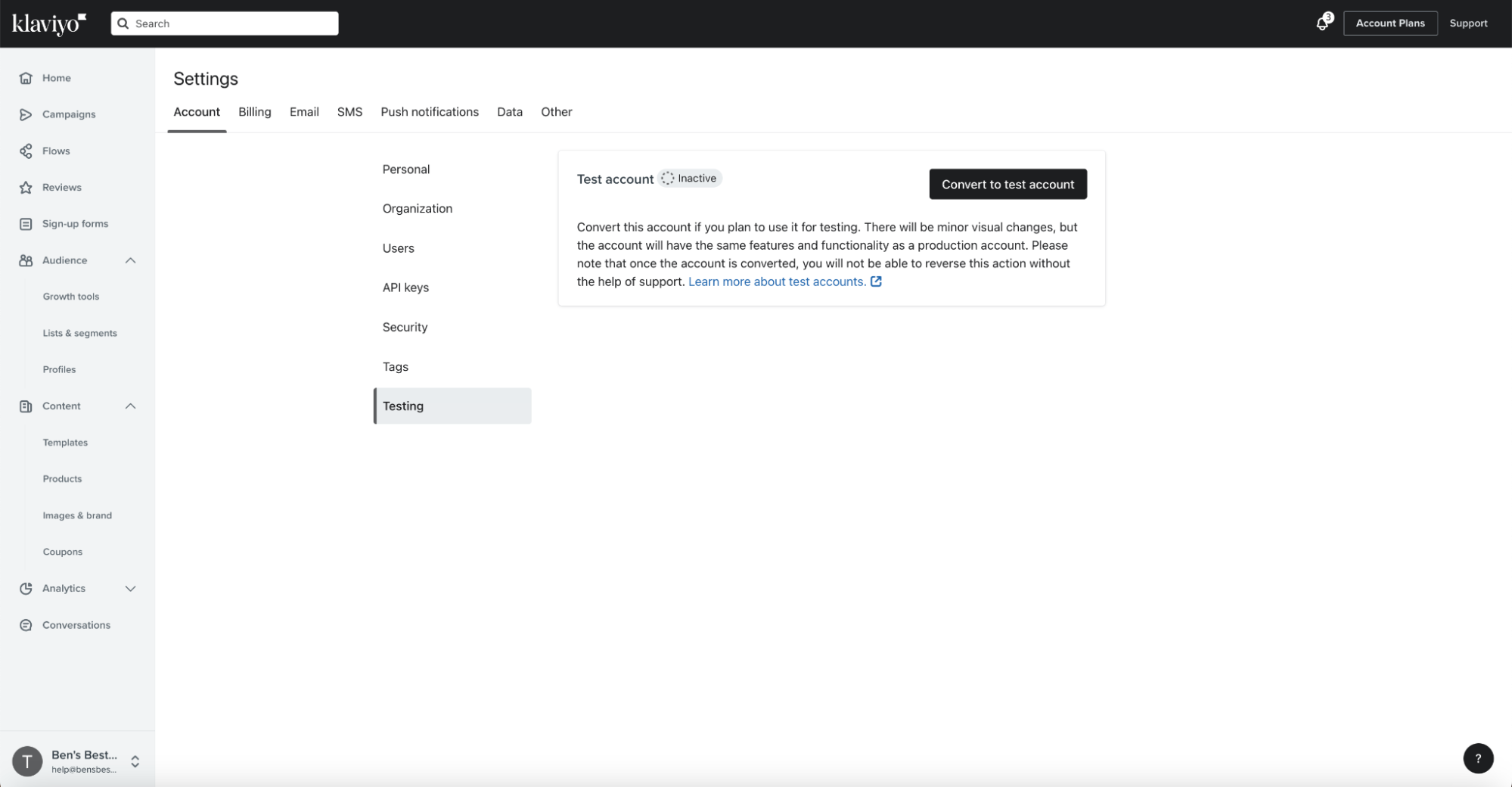
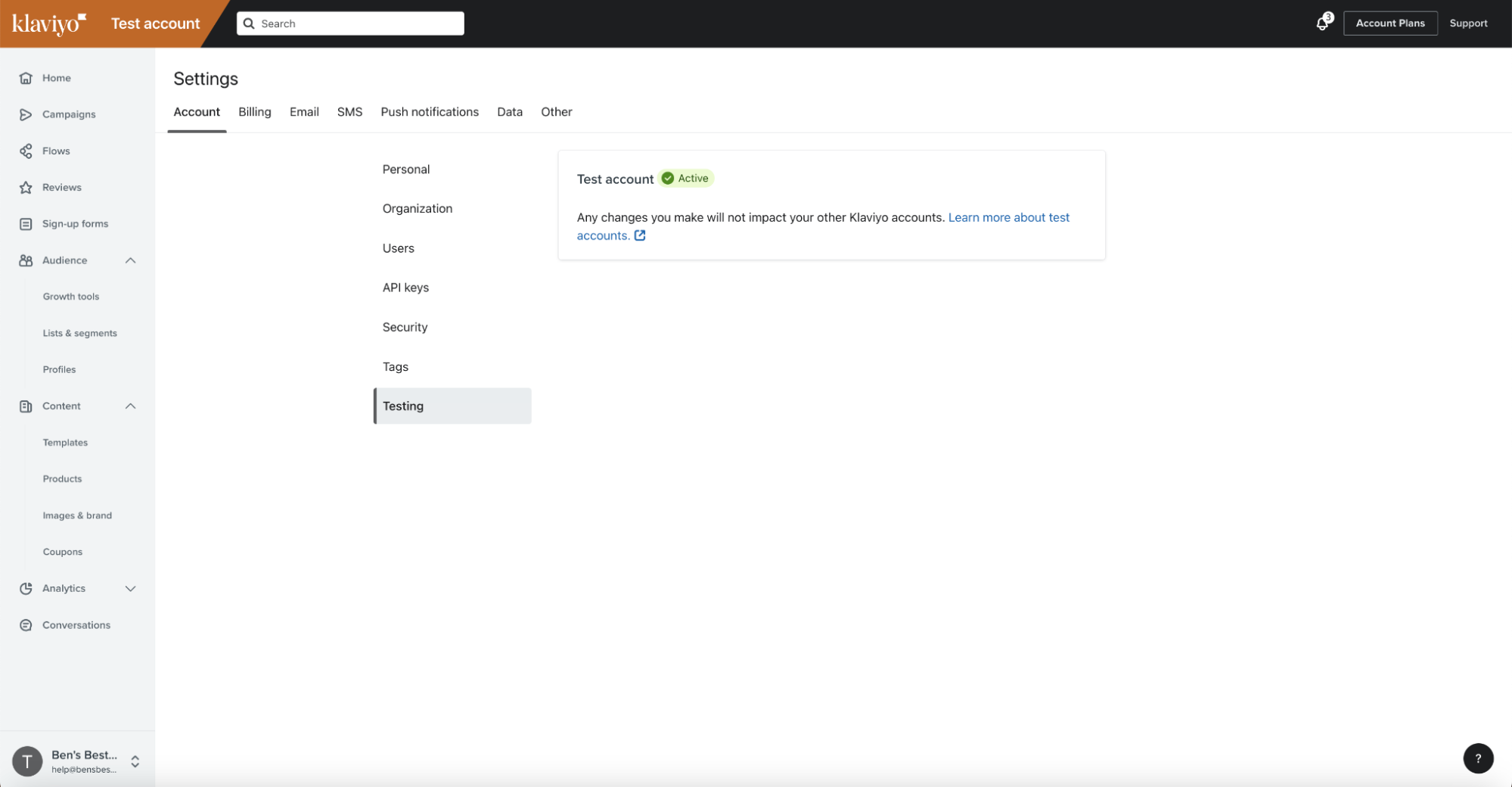
Your account should now be an active test account, as indicated in the top left corner and shown in the example below. Note that there will be minor visual changes, but the account works the same way as any other Klaviyo account on the same plan.
Swap between accounts
When you log in with an email and password associated with multiple accounts, you will automatically log in to the most recent account you were previously in. After logging in, use the account dropdown in the lower left corner to switch between production and test accounts.