---
title: "Use custom catalog data in emails"
description: "Use custom catalog data in Klaviyo to enhance your emails."
url: "https://developers.klaviyo.com/en/docs/how_to_use_custom_catalog_data_in_emails"
category: "Personalize messages"
lastUpdated: "2025-06-09"
related: ["https://developers.klaviyo.com/en/docs/llms.txt"]
---
# Use custom catalog data in emails
> This is the Markdown version of https://developers.klaviyo.com/en/docs/how_to_use_custom_catalog_data_in_emails
Use custom catalog data in Klaviyo to enhance your emails.
## Before you begin
Before you can use the product feed feature and add product recommendations to your emails, you'll need to sync your custom catalog feed to Klaviyo. You can use Klaviyo's custom catalog sync feature or our Catalogs API to bring your catalog into Klaviyo.
Product feeds are a type of data feed that can pull information from your custom catalog to display product recommendations in your emails. This feature can be used in [flow](## "also known as an automation, an automated sequence of steps that is set in motion by a single trigger and can be filtered based on specific profile or trigger details") or [campaign](## "a single, targeted email sending effort; a one-time send to a pre-established group of contacts") emails via the drag-and-drop product block.
> [!NOTE]
> Product blocks do not support any custom HTML. If you want to custom code your product block, you'll need to build one manually using the **Source** option of a text block.
## Create a product feed
Once your custom catalog sync setup has been finalized, you will be able to use the product feed feature and add product blocks in your emails.
First, you will need to create a product feed using the custom catalog feed data. Follow the steps outlined in How to use product feeds and recommendations.
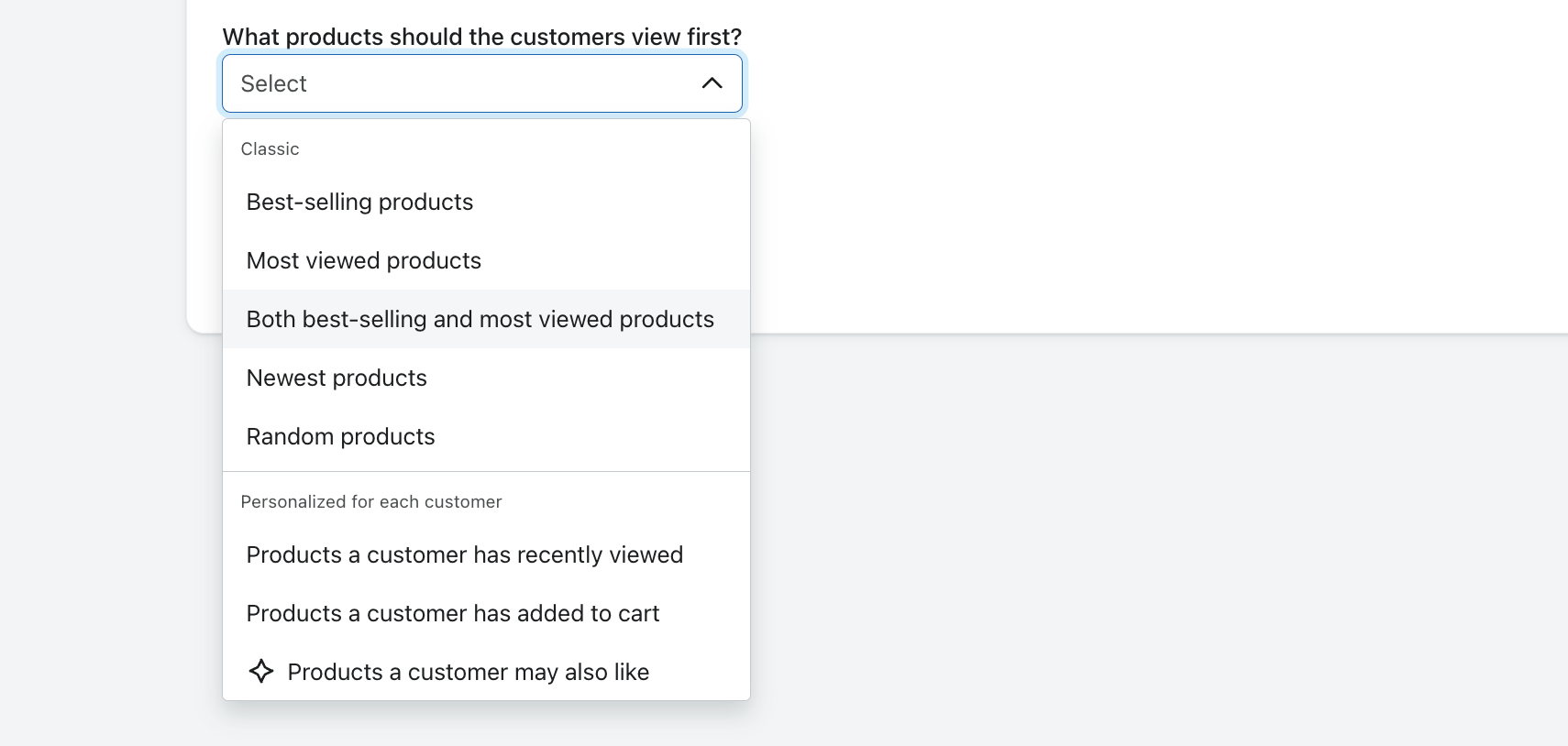
When setting up your feed, you’ll be able to choose a feed setup that corresponds to one of the metrics you requested during your custom catalog setup. If you requested a custom metric to be set up, it will appear in the product feed builder.
Personalized recommendation options for each customer are based on the following:
- _Products a customer has recently viewed_ are based on _Viewed Product_
- _Products a customer may also like_ will prompt a second setting dropdown, and you can choose it to be based on _Viewed Product_, _Ordered Product_, _Viewed Product_ and _Ordered Product_ (combined), or non-native metric (custom metrics created in Klaviyo or API metrics)
- _Products a customer has added to cart_ is based on either _Added to Cart_ or _Checkout Started_, depending on whether you have _Added to Cart_ enabled, and _Ordered Product_ (in order to exclude products the customer has ordered)
## Using a product block
Once you’ve set up a product feed using the custom catalog items, you can then follow the instructions in How to insert a product block to start using product blocks in your emails.
## Using the catalog lookup tag
Catalog lookup tags allow you to reference specific product information from your catalog within your emails using an item’s unique ID (`$id`). This is useful when you want to create custom product recommendations or cross-reference product information.
For example, if you're using your own product recommendation engine, you can add recommended products to a person’s profile by passing a list of product IDs as a custom profile property (i.e., \["a123","b456","c789"\]). Then, you can iterate through that list and perform a catalog lookup on each ID to pull in the information about the product to add to an email. To learn more, checkout our Overview of the catalog lookup tag guide.
## Additional resources
- [Sync a custom catalog feed to Klaviyo](https://developers.klaviyo.com/en/docs/guide_to_syncing_a_custom_catalog_feed_to_klaviyo.md)
- How to use product feeds and recommendations
- [Enable back in stock for custom catalog feeds](https://developers.klaviyo.com/en/docs/how_to_enable_back_in_stock_for_custom_catalog_feeds.md)