---
title: "Handle your app's OAuth flow"
description: "Learn best practices for handling your app’s OAuth installation flow."
url: "https://developers.klaviyo.com/en/docs/handle_your_apps_oauth_flow"
category: "Partner resources"
lastUpdated: "2026-09-02"
related: ["https://developers.klaviyo.com/en/docs/llms.txt"]
---

# Handle your app's OAuth flow

> This is the Markdown version of https://developers.klaviyo.com/en/docs/handle_your_apps_oauth_flow

Learn best practices for handling your app’s OAuth installation flow.

## Before you begin

Before getting started, you should have [created your app](https://developers.klaviyo.com/en/docs/create_a_public_oauth_app.md) and ensured that your app can successfully [initiate an OAuth connection](https://developers.klaviyo.com/en/docs/set_up_oauth.md).

> [!NOTE]
> We recommend checking out our OAuth example apps on GitHub ([Pet Party Planner](https://github.com/klaviyo-labs/Pet-Party-Planner) and [Node Example Integration](https://github.com/klaviyo-labs/node-integration-example)). You may reference these example apps as educational resources for better understanding the OAuth flow.

## You will learn

After following our [Make API calls using OAuth](https://developers.klaviyo.com/en/docs/set_up_oauth.md) guide, you should have successfully received an access token which grants your app access to make API calls on the user’s behalf. This article covers how to identify and handle your app’s OAuth installation and uninstallation flows initiated from your app’s side and from Klaviyo’s side. You will learn about:

- Standalone and embedded app installation flows
- Installation error handling
- Uninstallation flows
- Rate limits

## Handling your app’s OAuth flow

> [!CAUTION]
> Users must be able to successfully install your OAuth app from both klaviyo.com and any subdomain of klaviyo.com.

We expect that your app installations can be initiated from within your app’s platform. Additionally, when a user navigates to your app listing in Klaviyo and clicks **Install**, the installation process must properly function on Klaviyo’s end. We require that your OAuth installation flow works on both your app's side and Klaviyo's side to ensure a seamless and consistent user experience.

When a user tries to install your app from Klaviyo, your OAuth installation flow should ensure that the user is logged in to your app's host platform before directing them to OAuth installation. The sections below contain interactive click-through guides that demonstrate the expected installation process. Follow along to see how your app's installation flow should function.

### Standalone app installation flow

If your app is a standalone app, ensure your installation flow addresses the scenario below:

<div style="
width: 100%;
max-width: 800px;
margin: auto;
padding: 20px;
padding-top: 3px;
border-radius: 15px;
background-color: #f9fafb;
box-shadow: 0 4px 10px rgba(0, 0, 0, 0.15);
text-align: center;
position: relative;
">
<div class="embed-container-0" role="img">
<div class="embed-fallback-0 sr-only" role="alert">
<p aria-live="polite">
This content is optimized for accessibility. If you are using a screen reader, the accessible fallback content is available instead of the interactive iframe.
</p>
<table style="width: 100%; border-collapse: collapse; border: 1px solid #ccc;">
<thead style="background: #f4f4f4;">
<tr>
<th style="border: 1px solid #ccc; padding: 10px; text-align: left;">Scenario</th>
<th style="border: 1px solid #ccc; padding: 10px; text-align: left;">Flow step(s)</th>
</tr>
</thead>
<tbody>
<tr>
<td style="border: 1px solid #ccc; padding: 10px;">The user is logged in to your app.</td>
<td style="border: 1px solid #ccc; padding: 10px;">The user directly enters the Klaviyo OAuth installation flow.</td>
</tr>
<tr>
<td style="border: 1px solid #ccc; padding: 10px;">The user is not logged in but has an existing account.</td>
<td style="border: 1px solid #ccc; padding: 10px;">
<ol>
<li>The user is redirected to your app’s login page.</li>
<li>The user logs in and is redirected to the Klaviyo OAuth installation flow.</li>
</ol>
</td>
</tr>
</tbody>
</table>
</div>
<iframe
title="Driveway.io walkthrough of what a standalone app flow looks like."
src="https://on.driveway.app/guides/9L028OW/embed"
style="
width: 100%;
height: 500px;
border: none;
"
onload="document.querySelector('.embed-fallback-0').classList.add('sr-only');"
onerror="document.querySelector('.embed-fallback-0').classList.remove('sr-only');"
aria-hidden="true"
tabindex="-1"
allow="clipboard-write" allowfullscreen>
</iframe>
<div style="
margin-top: 10px;
font-size: 14px;
color: #333;
padding: 10px;
display: inline-block;
">
Hover and click on <b>Enter fullscreen</b> (bottom right) to expand the demo view.
</div>
</div>
</div>

### Embedded app installation flow

If your app is an embedded app (e.g., apps hosted on ecommerce platforms), ensure your installation flow addresses the scenarios below:

#### The user has already installed the app on its host platform

<div style="
width: 100%;
max-width: 800px;
margin: auto;
padding: 20px;
padding-top: 3px;
border-radius: 15px;
background-color: #f9fafb;
box-shadow: 0 4px 10px rgba(0, 0, 0, 0.15);
text-align: center;
position: relative;
">
<div class="embed-container-1" role="img">
<div class="embed-fallback-1 sr-only">
<table style="width: 100%; border-collapse: collapse; border: 1px solid #ccc;">
<thead style="background: #f4f4f4;">
<tr>
<th style="border: 1px solid #ccc; padding: 10px; text-align: left;">Scenario</th>
<th style="border: 1px solid #ccc; padding: 10px; text-align: left;">Flow step(s)</th>
</tr>
</thead>
<tbody>
<tr>
<td style="border: 1px solid #ccc; padding: 10px;">The user is logged in to the host platform.</td>
<td style="border: 1px solid #ccc; padding: 10px;">
<ol>
<li>The user directly enters the Klaviyo OAuth installation flow.</li>
</ol>
</td>
</tr>
<tr>
<td style="border: 1px solid #ccc; padding: 10px;">The user is not logged in to the host platform but has an existing account.</td>
<td style="border: 1px solid #ccc; padding: 10px;">
<ol>
<li>The user is redirected to the host platform's login page.</li>
<li>After login, the user is redirected to the Klaviyo OAuth installation flow.</li>
</ol>
</td>
</tr>
<tr>
<td style="border: 1px solid #ccc; padding: 10px;">The user is not logged in to the host platform and does not have an account.</td>
<td style="border: 1px solid #ccc; padding: 10px;">
<ol>
<li>The user is redirected to the host platform’s login page, where they can create an account.</li>
<li>The user creates an account and logs in.</li>
<li>The user is redirected to the Klaviyo OAuth installation flow.</li>
</ol>
</td>
</tr>
<tr>
<td style="border: 1px solid #ccc; padding: 10px;">The user has not installed the app on the host platform.</td>
<td style="border: 1px solid #ccc; padding: 10px;">
<ol>
<li>A message informs the user that they need to install the app from the host platform's app listing page and retry installation.</li>
<li>The user is redirected to the Klaviyo OAuth installation flow.</li>
</ol>
</td>
</tr>
<tr>
<td style="border: 1px solid #ccc; padding: 10px;">Your app's host platform is a multi-tenant app, i.e., each tenant (or sub-account) operates independently, and a sub-account must be provided.</td>
<td style="border: 1px solid #ccc; padding: 10px;">
<ol>
<li>The user is redirected to a page to provide the sub-account for installing the app. For example, this may be a dropdown of available accounts to select from or a text box requesting a specific store URL.</li>
<li>After the sub-account has been identified, the user is redirected to the Klaviyo OAuth installation flow.</li>
</ol>
</td>
</tr>
</tbody>
</table>
</div>
<iframe
title="Driveway.io walkthrough of a host platform integration."
src="https://on.driveway.app/guides/zEVl9qA/embed"
style="width: 100%; height: 500px; border: none;"
onload="document.querySelector('.embed-fallback-1').classList.add('sr-only');"
onerror="document.querySelector('.embed-fallback-1').classList.remove('sr-only');"
aria-hidden="true"
tabindex="-1"
allow="clipboard-write" allowfullscreen>
</iframe>
<div style="
margin-top: 10px;
font-size: 14px;
color: #333;
padding: 10px;
display: inline-block;
">
Hover and click on <b>Enter fullscreen</b> (bottom right) to expand the demo view.
</div>
</div>
</div>

#### The user has not installed the app on its host platform

<div style="
width: 100%;
max-width: 800px;
margin: auto;
padding: 20px;
padding-top: 3px;
border-radius: 15px;
background-color: #f9fafb;
box-shadow: 0 4px 10px rgba(0, 0, 0, 0.15);
text-align: center;
position: relative;
">
<div class="embed-container-2" role="img">
<div class="embed-fallback-2 sr-only">
<table style="width: 100%; border-collapse: collapse; border: 1px solid #ccc;">
<thead style="background: #f4f4f4;">
<tr>
<th style="border: 1px solid #ccc; padding: 10px; text-align: left;">Scenario</th>
<th style="border: 1px solid #ccc; padding: 10px; text-align: left;">Flow step(s)</th>
</tr>
</thead>
<tbody>
<tr>
<td style="border: 1px solid #ccc; padding: 10px;">The user is logged in to the host platform.</td>
<td style="border: 1px solid #ccc; padding: 10px;">
<ol>
<li>The user directly enters the Klaviyo OAuth installation flow.</li>
</ol>
</td>
</tr>
<tr>
<td style="border: 1px solid #ccc; padding: 10px;">The user is not logged in to the host platform but has an existing account.</td>
<td style="border: 1px solid #ccc; padding: 10px;">
<ol>
<li>The user is redirected to the host platform's login page.</li>
<li>After login, the user is redirected to the Klaviyo OAuth installation flow.</li>
</ol>
</td>
</tr>
<tr>
<td style="border: 1px solid #ccc; padding: 10px;">The user is not logged in to the host platform and does not have an account.</td>
<td style="border: 1px solid #ccc; padding: 10px;">
<ol>
<li>The user is redirected to the host platform’s login page, where they can create an account.</li>
<li>The user creates an account and logs in.</li>
<li>The user is redirected to the Klaviyo OAuth installation flow.</li>
</ol>
</td>
</tr>
<tr>
<td style="border: 1px solid #ccc; padding: 10px;">The user has not installed the app on the host platform.</td>
<td style="border: 1px solid #ccc; padding: 10px;">
<ol>
<li>A message informs the user that they need to install the app from the host platform's app listing page and retry installation.</li>
<li>The user is redirected to the Klaviyo OAuth installation flow.</li>
</ol>
</td>
</tr>
<tr>
<td style="border: 1px solid #ccc; padding: 10px;">Your app's host platform is a multi-tenant app, i.e., each tenant (or sub-account) operates independently, and a sub-account must be provided.</td>
<td style="border: 1px solid #ccc; padding: 10px;">
<ol>
<li>The user is redirected to a page to provide the sub-account for installing the app. For example, this may be a dropdown of available accounts to select from or a text box requesting a specific store URL.</li>
<li>After the sub-account has been identified, the user is redirected to the Klaviyo OAuth installation flow.</li>
</ol>
</td>
</tr>
</tbody>
</table>
</div>
<iframe
title="Driveway.io guide on installing the app on the host platform."
src="https://on.driveway.app/guides/VAwZ7wL/embed"
style="width: 100%; height: 500px; border:none;"
onload="document.querySelector('.embed-fallback-2').classList.add('sr-only');"
onerror="document.querySelector('.embed-fallback-2').classList.remove('sr-only');"
aria-hidden="true"
tabindex="-1"
allow="clipboard-write" allowfullscreen>
</iframe>
<div style="
margin-top: 10px;
font-size: 14px;
color: #333;
padding: 10px;
display: inline-block;
">
Hover and click on <b>Enter fullscreen</b> (bottom right) to expand the demo view.
</div>
</div>
</div>

> [!CAUTION]
> Users installing your app from Klaviyo should not be redirected elsewhere to initiate the installation flow. Apps that only have an OAuth installation flow set up from their own platform will be rejected.

### Installation errors

Your app should also handle installation errors in which a user denies permissions or leaves the installation page, resulting in an installation failure.

| Scenario                                                                                                                   | Flow step(s)                                                                                                                                                                                    |
| :------------------------------------------------------------------------------------------------------------------------- | :---------------------------------------------------------------------------------------------------------------------------------------------------------------------------------------------- |
| The user denies the permissions needed to install your app.                                                                | The user receives an error message indicating that the app installation failed due to denied permissions. The message allows them to dismiss it, and they can attempt installation again later. |
| The user leaves the OAuth page and returns to install your app after the authorization code has expired (after 5 minutes). | The user receives an error message indicating that the session is no longer valid. The message redirects them to re-attempt installation.                                                       |

> [!CAUTION]
> If a user needs to take manual, avoidable steps to install your app, it will be rejected.

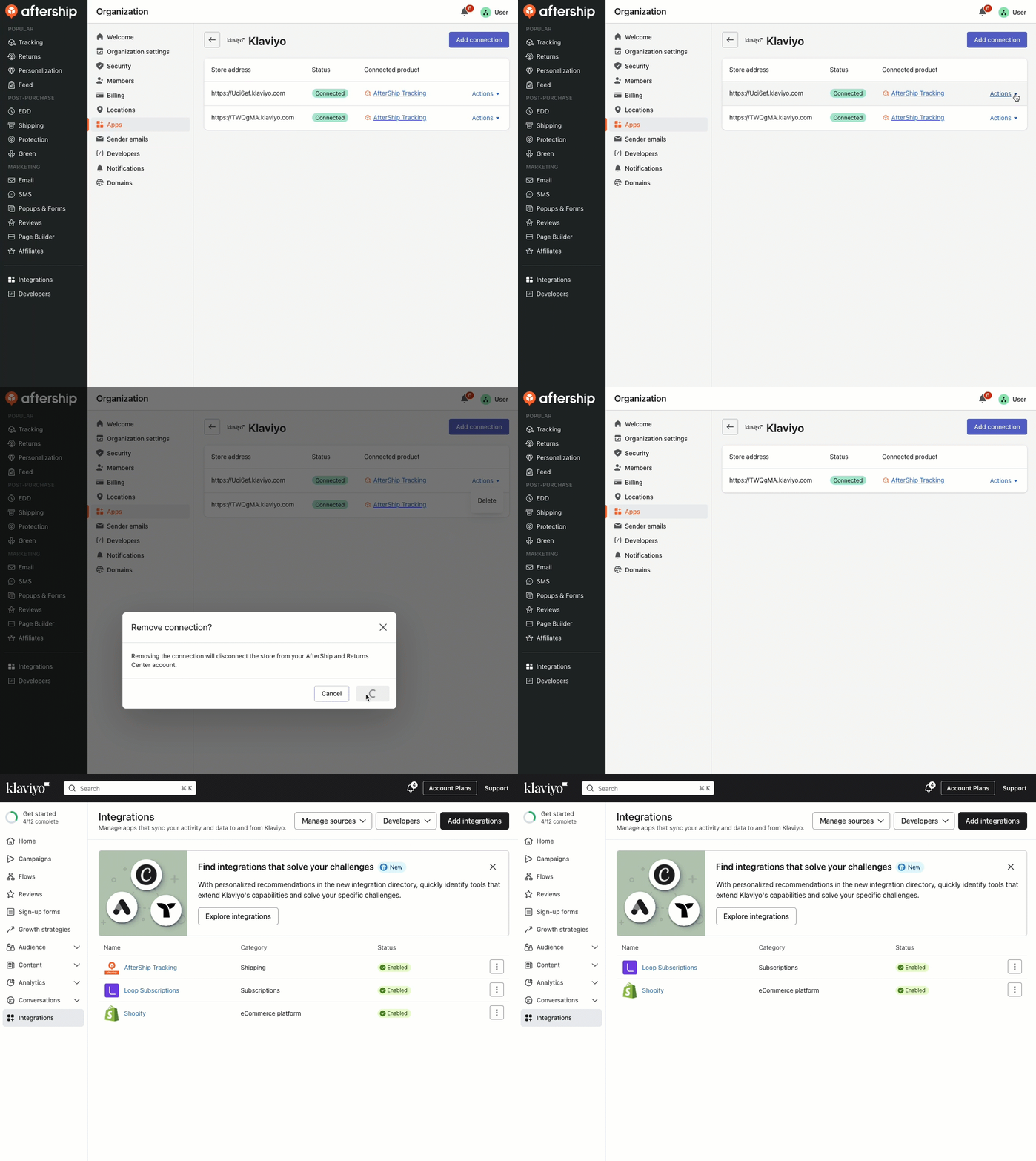
### Uninstallation flow

In addition to the installation flow cases, your OAuth flow handles uninstalling your app from your app’s side and from Klaviyo’s side.

<div style="
width: 100%;
max-width: 800px;
margin: auto;
padding: 20px;
border-radius: 15px;
background-color: #f9fafb;
box-shadow: 0 4px 10px rgba(0, 0, 0, 0.15);
text-align: center;
position: relative;
">
<div class="embed-container-0" role="img">
<img src="https://files.readme.io/f3b6df0fc5a85072fcb5677b2e7a105cf1f9dae517e3ff695157a3d676b0cb19-uninstall_flow.gif">
</div>
</div>

#### Uninstalling from your app's platform

When a user uninstalls your app from your platform, your app should make an API call to [revoke the refresh token](https://developers.klaviyo.com/en/docs/set_up_oauth.md) for the user. After this action, the app should be removed from the account’s integration page in Klaviyo, and the user can re-install it if they wish. Your app must no longer display the app as installed.

> [!NOTE]
> For a positive user experience, ensure that a disconnect option is easy to locate in your app's UI.

#### Uninstalling from Klaviyo

When a user uninstalls your app from Klaviyo, ensure that the status reflects properly in your app, i.e., it appears as uninstalled on your app’s platform.

## Rate limits

To avoid unnecessary load in accordance with our [API Terms of Use](https://www.klaviyo.com/legal/api-terms), your app must respect API rate limits. Rate limiting for OAuth apps differs from our [standard API rate limiting](https://developers.klaviyo.com/en/docs/rate_limits_and_error_handling.md). While private key integrations share the same limit quota per account, OAuth apps:

- Receive their own rate limit quota per installed app instance (i.e., per account per app).
- Receive rate limit response headers for API calls that are specific to the app instance’s quota

For example, the Create Events endpoint has an XL (3500/m) rate limit. Say that a given Klaviyo account:

- Has a private key integration, PK Integration A. PK Integration A can make calls to Create Events with a steady rate limit of 3500/m.
- Installs OAuth App 1. OAuth App 1 will have access to a 3500/m Create Events rate limit, totally isolated from Integration A’s usage.
- Installs OAuth App 2. OAuth App 2 would receive a 3500/m rate limit, in isolation from the OAuth App 1 and the PK Integration A.

## Next steps

Once that your app handles its OAuth flow correctly for each client state (logged in vs. not logged in) from your app’s side and Klaviyo’s side, follow our guide that covers best practices and common errors in the app review process to [pass your app review](https://developers.klaviyo.com/en/docs/pass_your_app_review.md).

## Additional resources

- [Authorize your app](https://developers.klaviyo.com/en/docs/set_up_oauth.md)
- [Troubleshoot OAuth errors](https://developers.klaviyo.com/en/docs/troubleshoot_oauth_errors.md)
- [Pass your app review](https://developers.klaviyo.com/en/docs/pass_your_app_review.md)