---
title: "Generate sample data"
description: "Learn how to use the Sample Data Generation Tool to populate your Klaviyo account with three types of sample data: Klaviyo, custom ecommerce integration, and catalog data."
url: "https://developers.klaviyo.com/en/docs/generate_sample_data"
category: "Developer SDKS & tools"
lastUpdated: "2024-09-10"
related: ["https://developers.klaviyo.com/en/docs/llms.txt","https://developers.klaviyo.com/en/docs/developer-tools.md"]
---
# Generate sample data
> This is the Markdown version of https://developers.klaviyo.com/en/docs/generate_sample_data
Learn how to use the Sample Data Generation Tool to populate your Klaviyo account with three types of sample data: Klaviyo, custom ecommerce integration, and catalog data.
Klaviyo’s Sample Data Generation Tool inside the Developer Tools area enables you to populate your test account with data for testing purposes. Three types of data are available to create: Klaviyo, custom ecommerce integration, and catalog data.
> [!NOTE]
> Please ensure you are in the correct account before generating data. We recommend a dedicated account for testing purposes. Learn how to [create a test account](https://developers.klaviyo.com/en/docs/create_a_test_account.md).
## Generate sample data
1. Open the Sample Data Generation Tool
2. Select the type(s) of data you want to create:
a. Check the box next to **Klaviyo Data** to generate sample customer profiles, email events, and SMS events
b. Check the box next to **eCommerce Data** to create ecommerce events on sample profiles, such as _Added to Cart_ and _Cancelled Order_
c. Check the box next to **Catalog Data** to populate a catalog with sample product items
3. When you are satisfied with your selections, click **Add Data**.
> [!WARNING]
> The data generation tool can only be used to create sample data **one time per data type**. Any data not yet generated can be created at a later time by reassessing the tool. Data types that were already created will be disabled.
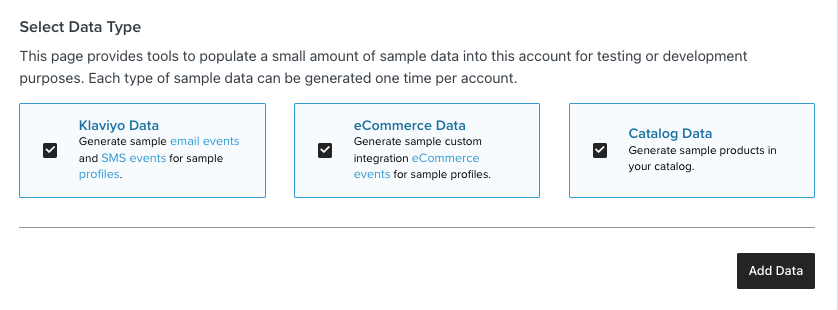 Data will populate in your account shortly. A green success message will appear when generation is complete. Once the data is created, you can see an overview of the sample data in the sections below. Rarely, the tool may fail to generate all or part of the data requested. If you receive an error message, refresh the page and re-attempt generating data following the steps above.
### Sample profiles & events
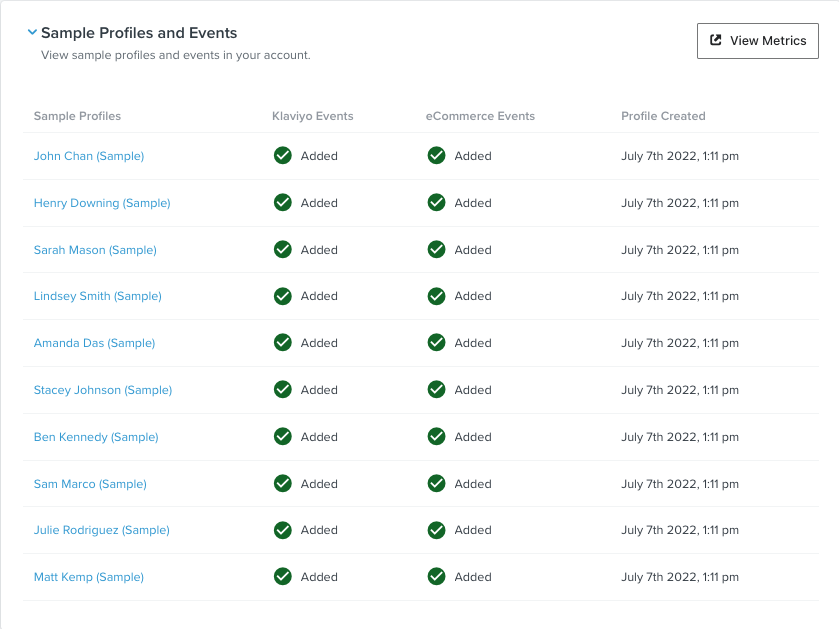
The sample data tool generates 10 sample profiles, which can be viewed in the _Sample Profiles and Events_ section of the tool. Here you can view the name for each profile, as well as if Klaviyo events and ecommerce events were created for that profile. Each profile also includes the _Created_ timestamp. To view additional details of the events for these profiles, click **View Metrics**.
Read more about the [Klaviyo data](https://developers.klaviyo.com/en/docs/generate_sample_data.md) and [custom ecommerce integration data](https://developers.klaviyo.com/en/docs/generate_sample_data.md) created by this tool.
 > [!NOTE]
> You will notice 2 sample campaigns (draft and sent) titled _Internal Klaviyo - Test Campaign Name_ under [Campaigns](https://www.klaviyo.com/campaigns/list). A sample list named _Sample Data List_ will also appear under [Lists & segments](https://www.klaviyo.com/lists). These data types are created for generating sample event data.
### Sample catalog items
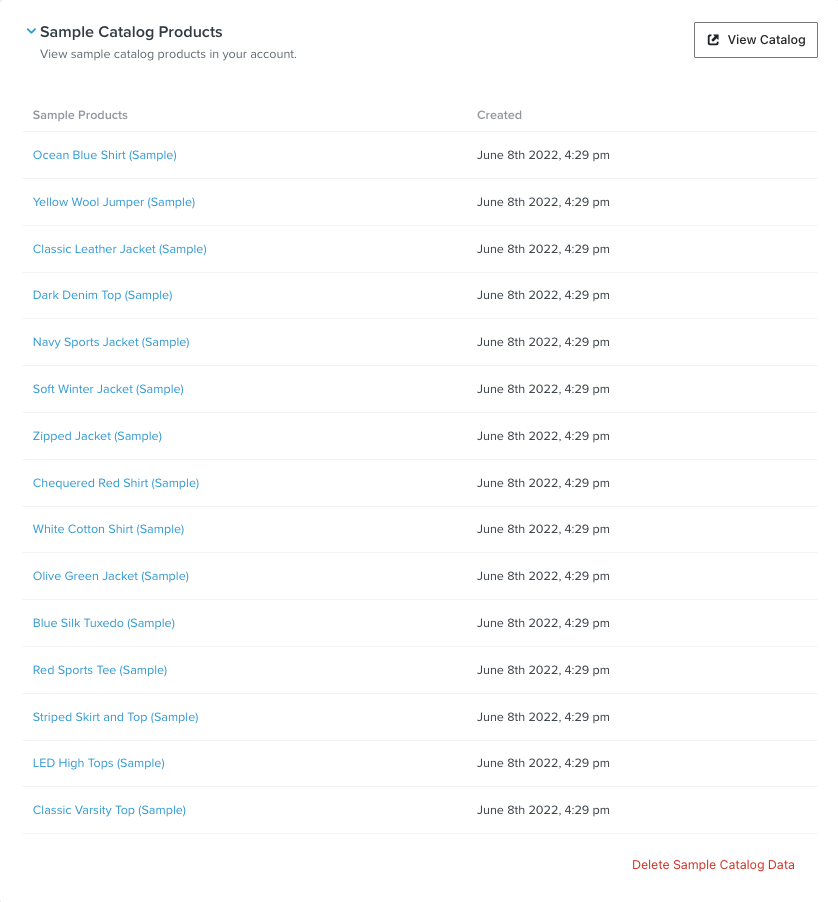
The sample data tool generates 15 catalog items. Each item is named with _(Sample)_ and the Item ID: _SAMPLE-DATA-ITEM-##_ to differentiate it from your other catalog data. To view all items in your catalog, click **View Catalog** to access the catalog tab.
Read more about the [catalog data](https://developers.klaviyo.com/en/docs/generate_sample_data.md) created by this tool.
 ### Delete catalog data
If you wish to import your own custom catalog into an account later, the sample catalog items generated by the tool need to be deleted. If you need to delete the sample catalog data:
1. Scroll to the bottom of the **Sample Catalog Items** modal
2. Click **Delete Sample Catalog Data**
3. Click the **Continue** button to confirm your choice
A green success message will appear when the sample data is successfully deleted.
## Klaviyo data
The Klaviyo data generated by the tool includes the following:
| | |
| :-------------- | :----------- |
| **Sample data** | **Quantity** |
| Profile | 10 |
Read more about Klaviyo profiles.
The email data generated by the tool includes the following events:
| | |
| :------------------- | :----------- |
| **Event** | **Quantity** |
| Received Email | 10 |
| Opened Email | 5 |
| Clicked Email | 2 |
| Bounced Email | 2 |
| Dropped Email | 1 |
| Marked Email as Spam | 1 |
| Unsubscribed | 1 |
Read more about understanding email metrics.
The SMS data generated by the tool includes the following events:
| | |
| :--------------------------------------- | :----------- |
| **Event** | **Quantity** |
| Consented to Receive SMS | 10 |
| Received SMS | 10 |
| Sent SMS | 2 |
| Clicked SMS | 1 |
| Failed to Deliver SMS | 1 |
| Received Automated Response SMS | 1 |
| Failed to Deliver Automated Response SMS | 1 |
| Unsubscribed from SMS | 1 |
Read more about Klaviyo SMS metrics.
## Custom ecommerce integration data
The ecommerce data generated by the tool includes the follow events:
| | |
| :--------------- | :----------- |
| **Event** | **Quantity** |
| Active on Site | 9 |
| Viewed Product | 16 |
| Added to Cart | 7 |
| Started Checkout | 6 |
| Placed Order | 5 |
| Ordered Product | 10 |
| Fulfilled Order | 2 |
| Cancelled Order | 2 |
| Refunded Order | 2 |
Read more about [custom ecommerce integration data](https://developers.klaviyo.com/en/docs/guide_to_integrating_a_platform_without_a_pre_built_klaviyo_integration.md).
## Catalog data
The catalog data generated by the tool includes the following data for each catalog item:
- Item ID (e.g. _SAMPLE-DATA-ITEM-10_)
- Status
- Added On
- Last Updated
- Category
- Description
## Next steps
[Make a test API request](https://developers.klaviyo.com/en/docs/make_your_first_api_call.md)
[Use custom catalog data in emails](https://developers.klaviyo.com/en/docs/how_to_use_custom_catalog_data_in_emails.md)